


Having trouble logging in?
flymy.co.uk is now running on a new platform. Here are some tips to help you smoothly access TTG's award-winning content.
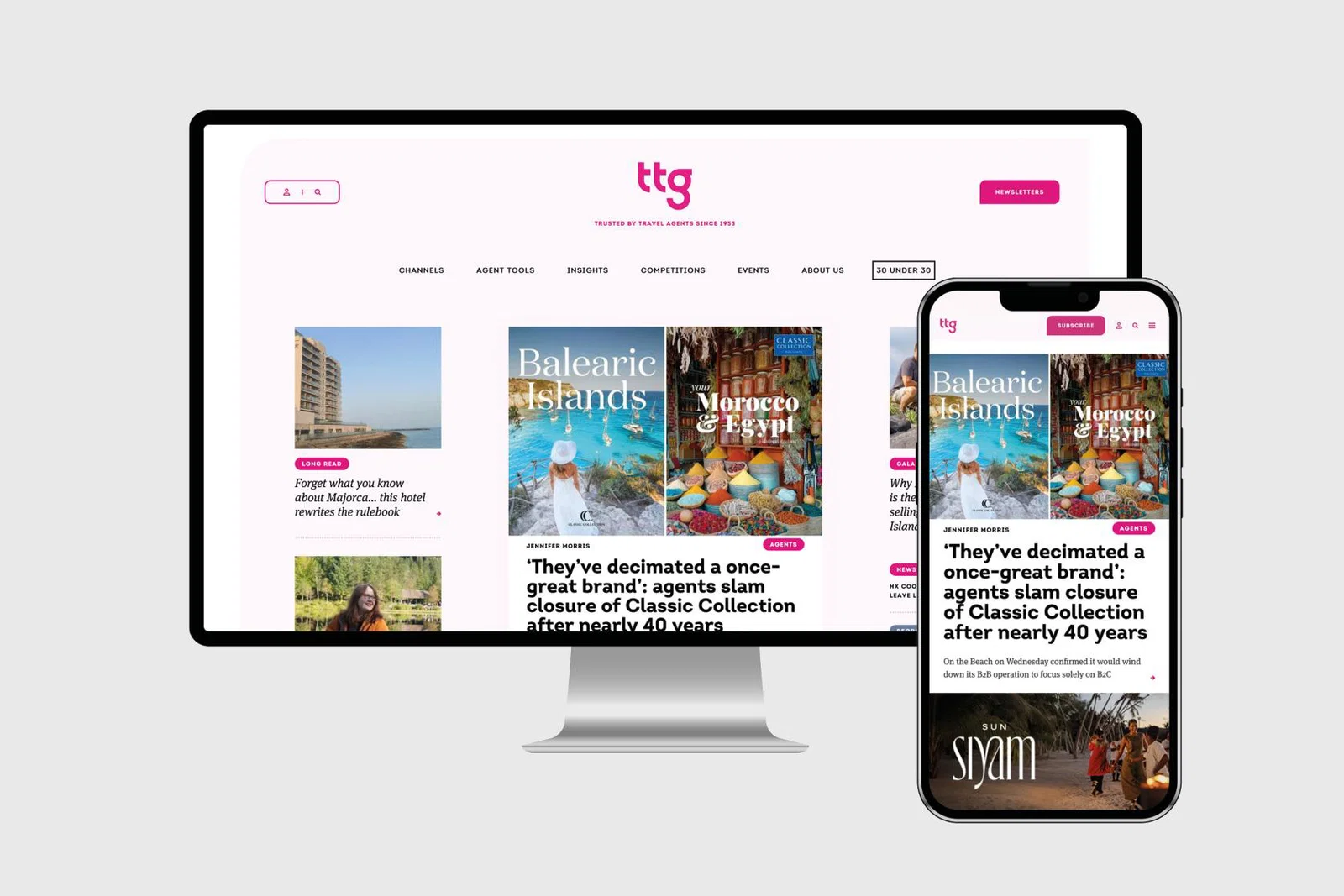
TTG has launched a new-look desktop and mobile website
When you try to log in for the first time the new site does not know your encrypted password so you will be emailed a single-use link to access your account. There you can restate your password or set a brand new one.
If you do change it remember to update the saved password on your devices.
However, if you are still having problems then deleting your old flymy.co.uk cookies may help. Here's how to do that on the most popular browsers... but if you need any assistance don't hesitate to contact support@flymy.co.uk.
Desktop browsers
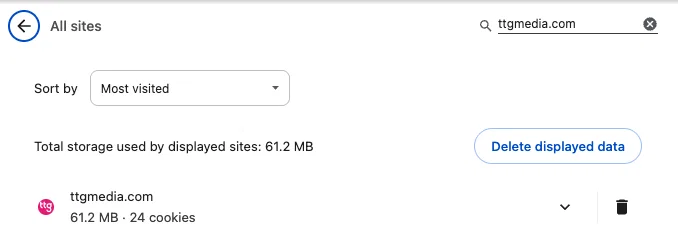
Chrome
- Paste chrome://settings/content/all?searchSubpage=flymy.co.uk into the address bar and hit return
- Hit the trash icon next to flymy.co.uk
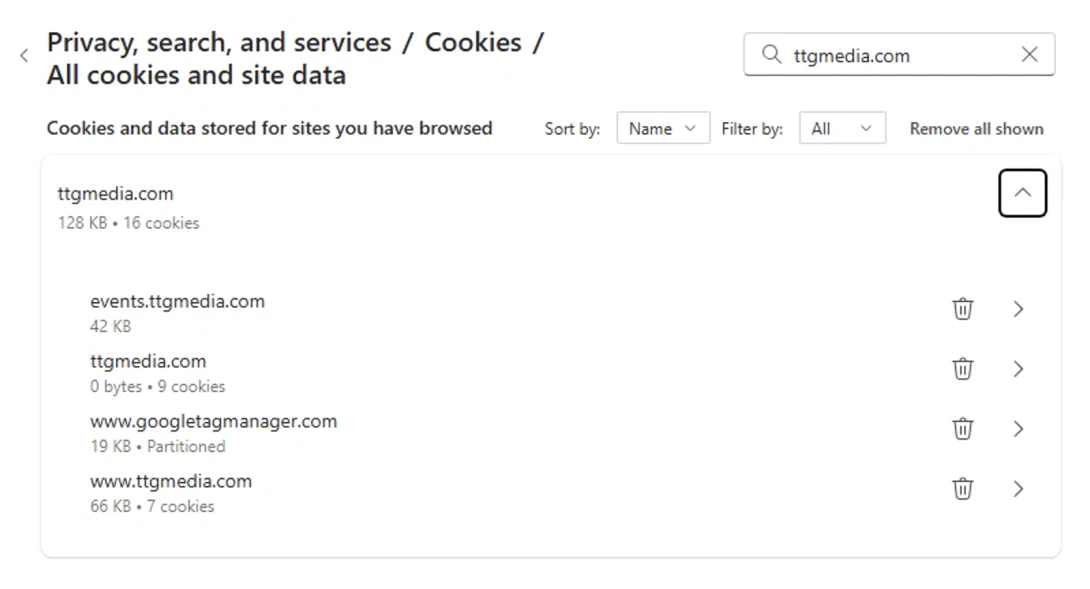
Microsoft Edge
- Paste edge://settings/privacy/cookies/AllCookies?searchSubpage=flymy.co.uk into the address bar and hit return
- Expand the dropdown and hit the trash icons next to flymy.co.uk and flymy.co.uk
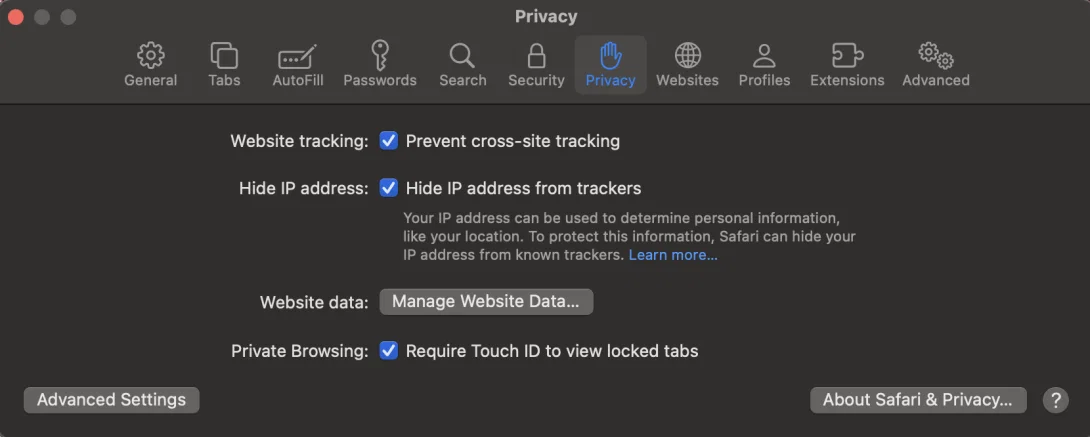
Safari (Mac OSX)
- Press ⌘, (command+comma) to go to Settings
- Click Privacy
- Click Manage Website Data...
- Type flymy.co.uk and click Remove All
Firefox
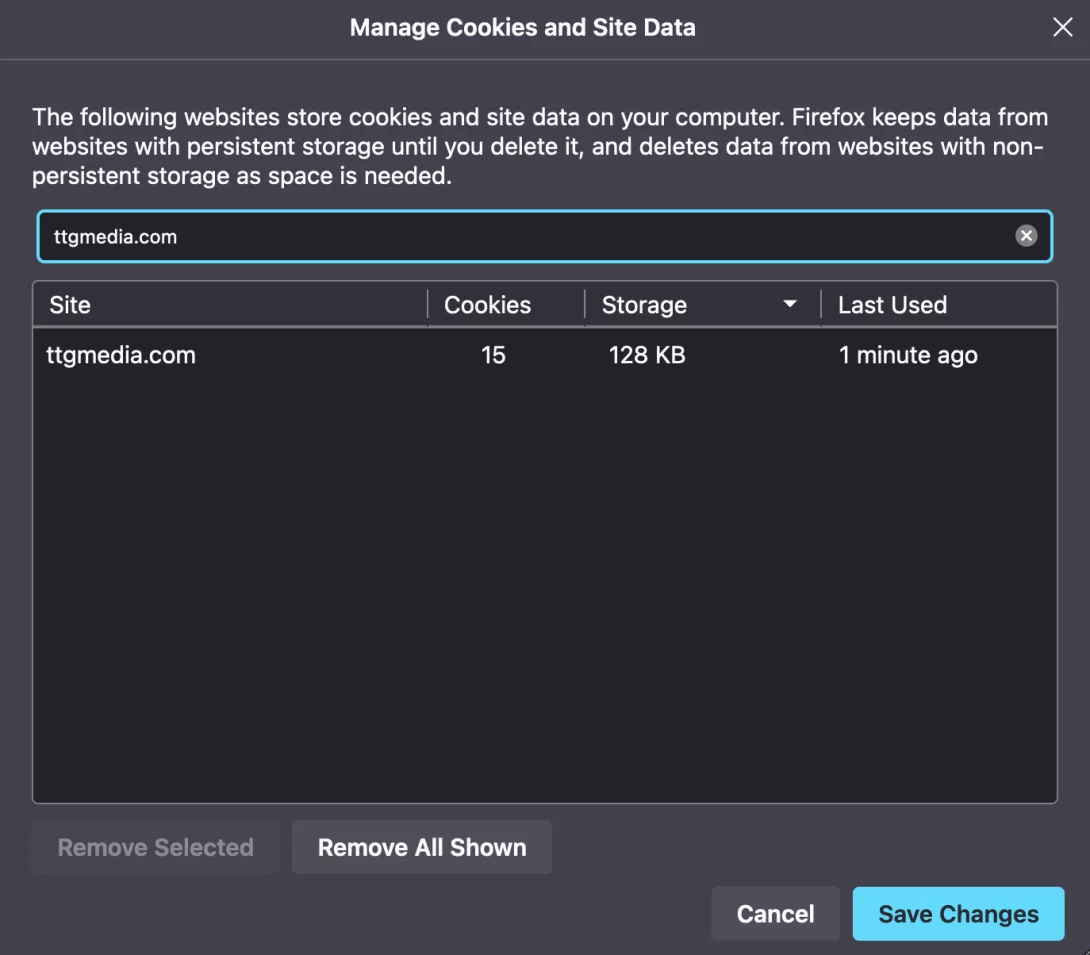
- Paste about:preferences#privacy into the address bar and hit return
- Under Cookies and Site Data click Manage Data...
- Type flymy.co.uk and click Remove All Shown and Save Changes
Mobile browsers
Safari iOS
- Go to Settings > Safari
- Scroll down to Advanced > Website Data > Remove All Website Data
Chrome Android
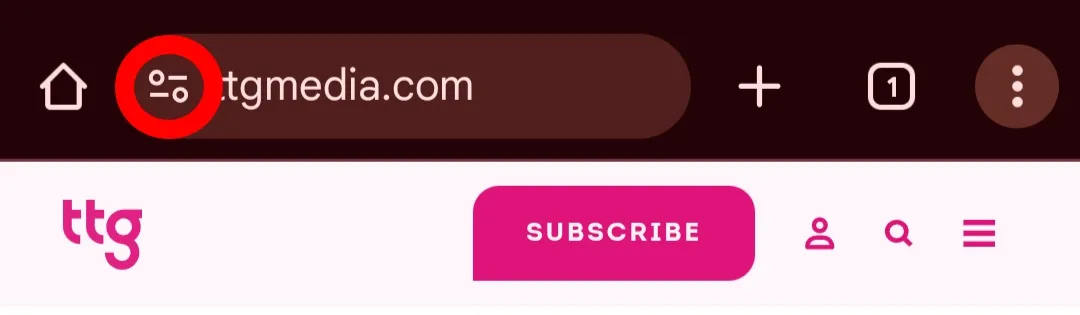
Visit flymy.co.uk and click the settings icon at the beginning of the address bar (it may be a padlock icon in the same position)
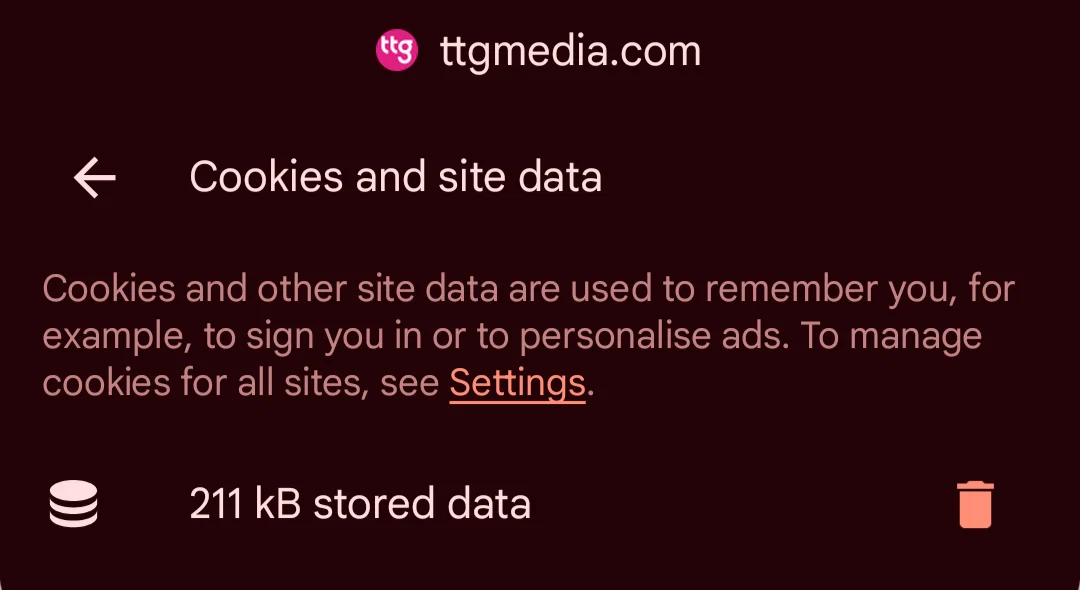
Click Cookies and site data and hit the trash icon
Still require assistance? Contact support@flymy.co.uk.